Admin
Table of contents
- Configuration Snippets
- Managing User Permissions
- OAuth Team Management
- Managing Organizations
- Managing User Limits
- Excluding Models
- Excluding MCP Servers
- MCP Server Configuration
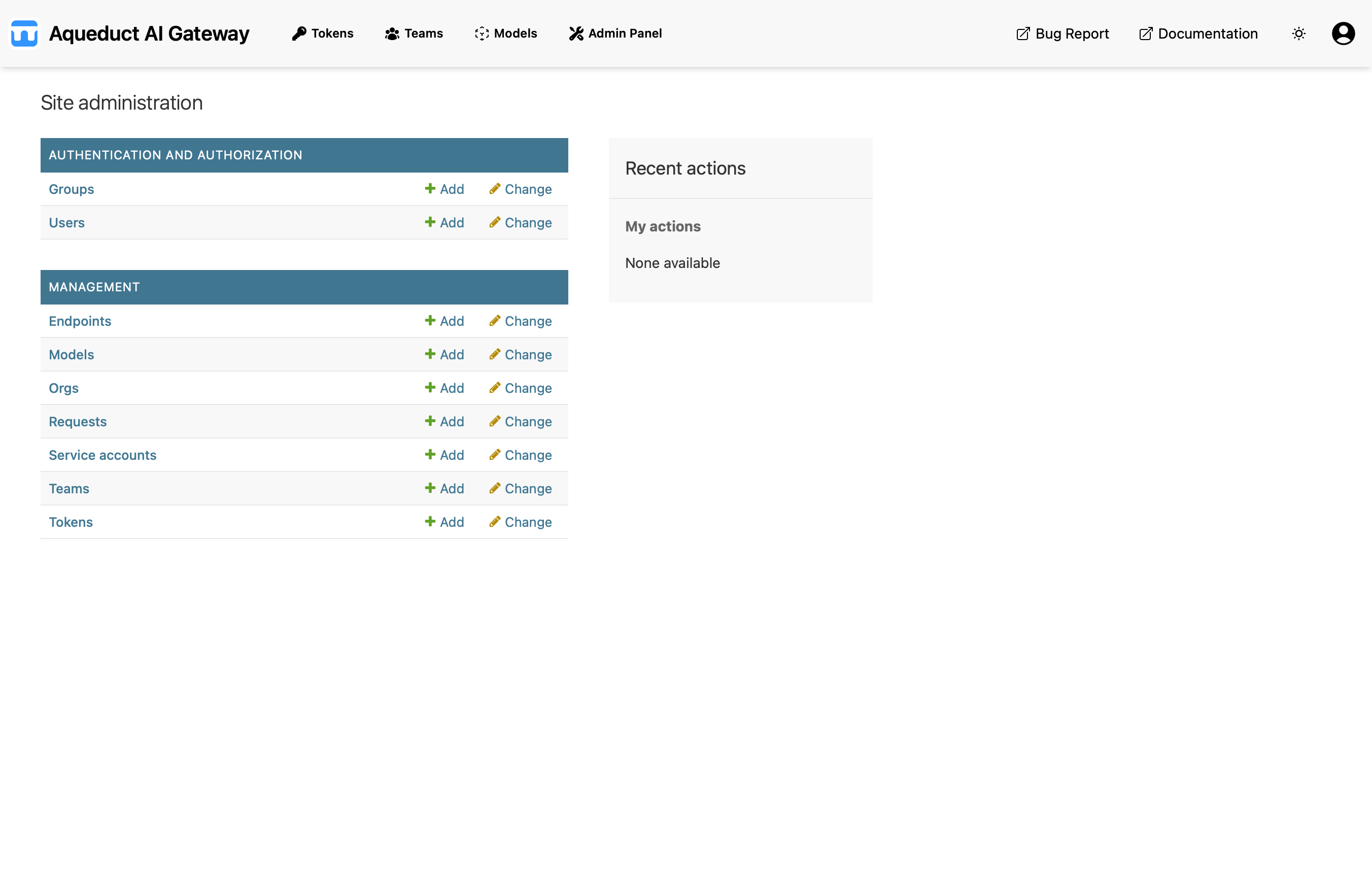
The Admin Panel is the Django Admin interface for the Aqueduct Gateway. It provides direct access to database objects and is used for advanced administrative actions, such as creating endpoints and models or managing user privileges.
Configuration Snippets
Runtime OIDC/auth configuration is provided by a config snippet — a Python class stored in the database, editable at runtime by superusers. Snippet code subclasses the auto-injected ConfigSnippet base class (no import needed) and overrides only the methods you need:
class MyConfig(ConfigSnippet):
    def org_name(self, claims):
        # Optional: extract the organization name from OIDC claims.
        # None fails closed (no org => no login). Default: "default".
        groups = claims.get("groups") or []
        return groups[0] if groups else None

    def team_names(self, claims):
        # Optional: extract raw team (group) names from OIDC claims.
        groups = claims.get("groups") or []
        return [g for g in groups if g.startswith("E")]

    def display_team_names(self, team_names):
        # Optional: map each raw group name to (display_team_name, team_name).
        # Example: "E123-Students" -> ("E123", "E123-Students")
        return [(t.split("-", 1)[0], t) for t in team_names]

    def user_group(self, claims):
        # Optional: return "admin" / "org-admin" / "user" from claims.
        # "admin" sets is_staff/is_superuser. Default: "user".
        return "user"
The four methods, signatures, and failure behavior:
| Method | Signature | Failure behavior |
|---|---|---|
org_name | (claims) -> str \| None | fail closed (None ⇒ no login) |
team_names | (claims) -> list[str] | fail open ([]) |
display_team_names | (team_names) -> list[(str, str)] | identity mapping (names unchanged) |
user_group | (claims) -> "admin" \| "org-admin" \| "user" | fail open ("user") |
At most one config snippet may be active at a time. Without one, the defaults apply: org "default", no teams, and the user role. A snippet must be valid Python, with correct method signatures and a class inheriting from ConfigSnippet; the admin form rejects anything else. Snippet changes take effect on the next login — editing or running the snippet in the test console recompiles it.
Auto-admin via ADMIN_GROUP
Set the ADMIN_GROUP environment variable to the name of a group whose members should automatically become admins (is_staff + is_superuser) on login — e.g. ADMIN_GROUP=default. Leave ADMIN_GROUP empty (default) to disable this. It only applies when OAuth group management is enabled (see ENABLE_OAUTH_GROUP_MANAGEMENT).
Security: a snippet is arbitrary Python executed on the server, so editing is superuser-only and there is no sandboxing. The test console lets you run a snippet against a sample input before saving (also superuser-only).
Auto-admin via ADMIN_SUPERUSER_EMAILS
Set the ADMIN_SUPERUSER_EMAILS environment variable to a comma-separated list of emails that are always made admins (is_staff + is_superuser) on login, regardless of their group. Leave it empty (default) to disable this.
Only emails on this list are allowed to use the Snippet admin (editing and the test console).
Managing User Permissions
Admins can manage the permissions of other users through the Django Admin interface. User permissions are controlled using Django’s built-in groups. The main groups used in Aqueduct are:
userorg-adminadmin
To grant a user admin privileges, you must assign them to the admin group and ensure that both the “staff” and “superuser” flags are set to True in the Django Admin. If you wish to promote a user to org-admin, change their group from user to org-admin and remove the user group from their group list.
When users log in via OIDC, their group and staff/superuser flags are re-derived from the active config snippet’s user_group(claims), so manual admin edits may be overwritten on next login unless the snippet keeps them in an admin group.
Team admins are managed differently: they are assigned through a many-to-many relationship between users and teams, which is handled in the Aqueduct UI. For more information, see the Teams page.
OAuth Team Management
OAuth team management automatically syncs user team memberships based on OAuth groups at login. When enabled, users are added to teams corresponding to their OAuth groups, and teams can be created automatically.
Configuration
| Setting | Purpose |
|---|---|
ENABLE_OAUTH_GROUP_MANAGEMENT | Master switch - when False, no team sync happens on login |
ENABLE_OAUTH_GROUP_CREATION | When True, teams are auto-created from OAuth groups; when False, users only join existing teams |
ENABLE_OAUTH_GROUP_REMOVAL | Controls removal from non-OAuth teams only. When True (default), users are removed from all teams not in their OAuth groups. When False, users stay in manually created teams but are always removed from OAuth-managed teams when they lose the corresponding OAuth group |
The team-name mapping logic is provided by the active config snippet’s team_names / display_team_names methods (see Configuration Snippets).
Admin Panel
The Teams admin view shows OAuth management status:
- “OAuth Managed” column - Shows “Yes” for OAuth-managed teams
- Filter - Filter by
oauth_group_nameto show only OAuth-managed teams - Read-only fields - Team name, organization, and OAuth group name are read-only for OAuth-managed teams
- Member management - Inline member editing is disabled for OAuth-managed teams (sync happens at login)
- Help text - OAuth-managed teams display a notice explaining how to update team names via the sync command
Rate limits, descriptions, and exclusions remain editable for OAuth-managed teams.
Syncing Team Names
When you change the display_team_names logic in the active config snippet, you can update existing team names using the admin action:
- Navigate to Admin → Management → Teams
- Select the teams you want to sync (or select all)
- From the Action dropdown, select “Sync OAuth team names”
- Click Go
The action will:
- Read the stored
oauth_group_namefor each selected OAuth-managed team - Re-apply the current
display_team_namesmapping from the active config snippet - Update team names based on the mapping result
- Skip teams with name collisions or unchanged names
- Never affect manually created teams (those with empty
oauth_group_name) - Show a warning if any teams would be deleted (deletion requires using the command-line)
Note: Team deletion is not performed via the admin action for safety. If the mapping returns nothing for a team (indicating it should be deleted), you’ll see a warning message. To delete teams, use the command-line or delete them manually in the admin.
Managing Organizations
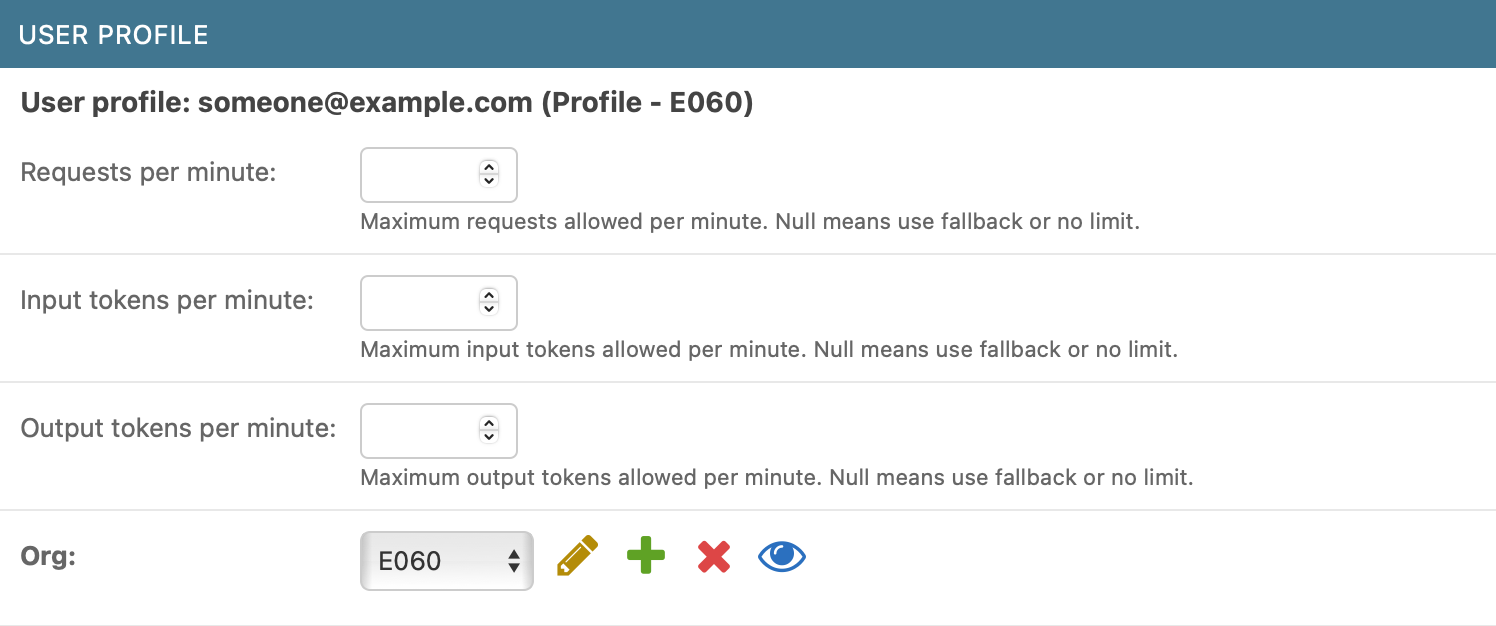
As an admin, you can assign yourself or other users to different organizations within the admin panel. This is useful if you need to administer multiple organizations. Organization assignments are managed within the user model in the admin interface, where the organization is presented as part or the user profile.
Note: Organization assignments made in the admin panel may be overwritten on the user’s next login, as user data is updated during authentication.
Managing User Limits
You can also change the request usage limits for individual users within the UserProfile inline model. This functionality is currently not available in the main UI and must be performed through the Django Admin interface.
Excluding Models
To exclude models for Orgs, Teams or specific UserProfiles, select the models to be excluded in the detail view admin interface of the specific entity. Excluded models are not available in any endpoints (returns 404) and are filtered from the model list.

Merge Exclusion Lists
The merge_exclusion_lists field determines how exclusion lists are built across the User, Team, Org, and global settings levels. When merge_exclusion_lists is enabled, the exclusion list for an entity is constructed by merging its own list with those from higher levels—moving upward through Org and finally the global settings. If merge_exclusion_lists is disabled at any level, merging stops there, and higher-level exclusions (including global) are not included.
Example:
Suppose a User has an exclusion list ["A", "B"] and merge_exclusion_lists=True; their Org has ["C"] with merge_exclusion_lists=False; and the global exclusion list is ["D"]. The effective exclusion list for the User would be ["A", "B", "C"]—the Org’s merge_exclusion_lists=False means the global settings are ignored.
This system provides fine-grained control over how and where model exclusions are inherited.
Excluding MCP Servers
Similar to model exclusions, you can exclude specific MCP servers for Organizations, Teams, or UserProfiles through the admin interface. This prevents users from accessing certain MCP servers while allowing access to others.
To exclude MCP servers:
- Navigate to the Org, Team, or UserProfile detail view in the Django Admin
- In the “Excluded MCP Servers” section, select the servers you want to exclude
- Save the changes
When an MCP server is excluded:
- Requests to that server return a 404 error
- The server is effectively unavailable to users in that scope
MCP Server Exclusion Hierarchy
MCP server exclusions follow the same hierarchical pattern as model exclusions:
- For User Tokens: UserProfile → Org → Global Settings
- For Service Account Tokens: Team → Org → Global Settings
The merge_mcp_server_exclusion_lists field works identically to merge_exclusion_lists:
- When enabled (default), the exclusion list includes servers from the current level plus all higher levels
- When disabled, only the current level’s exclusions apply, stopping the upward merge
Example:
A Team excludes ["server-a"] with merge enabled; its Org excludes ["server-b"] with merge disabled; global settings exclude ["server-c"]. Service accounts in that Team would have an effective exclusion list of ["server-a", "server-b"]—the Org’s merge disabled prevents the global server-c from being included.
You can configure the global default MCP server exclusion list in settings.py using the AQUEDUCT_DEFAULT_MCP_SERVER_EXCLUSION_LIST setting (defaults to an empty list).
MCP Server Configuration
MCP servers are configured through a JSON file referenced in settings.py via MCP_CONFIG_FILE_PATH (defaults to “mcp.json”). Each server configuration includes:
- type: Transport type (e.g., “streamable-http”)
- url: Server endpoint URL
- description: Server description
- tags: Categories for organization
Example configuration:
{
  "mcpServers": {
    "test-server": {
      "type": "streamable-http",
      "url": "http://localhost:3001/mcp",
      "description": "For Streamable HTTP connections",
      "tags": ["development", "testing"]
    }
  }
}